Surfaces window
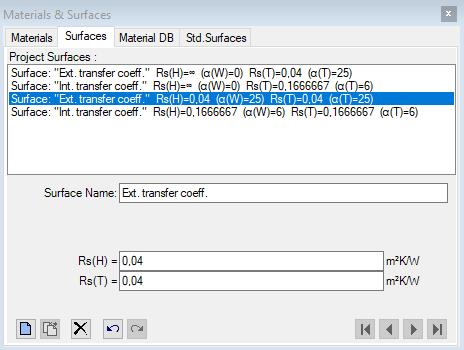 The
Surfaces window is used to create and maintain the list of project specific
surface properties.
The
Surfaces window is used to create and maintain the list of project specific
surface properties.
The list of surfaces offered in this window can be
synchronised with surfaces directly entered and used in the model, thus all
surfaces constituting the component are displayed here also.
Surfaces can be merged from other projects and combined in this list.
The primary use of this window is to prepare lists of surfaces which, in cooperation with other windows, allow significant simplification and acceleration during the input of element properties for space boxes.
Upper part of the window lists surfaces. The bottom part - Surface Editor - allows definition of surface properties.
Important: Changes to surface properties in the project specific surface list do not automatically propagate to properties of construction elements. Applying new surface properties to selected elements must be done explicitly - either by a double-click onto a list item, via a drag-drop operation from the surface list or by the bulk replacement of properties.
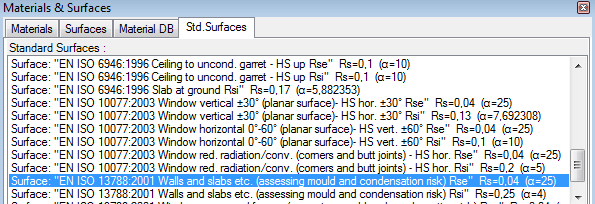
Remark: The tab "Std.Surfaces" provides a list of (read only) normative surface properties.
Surface list
A double-click onto a line representing surface in this window results in an assignment of surface properties of selected surface to currently selected space elements (selected from elements list).
Also, by drag-drop operation (by dragging with the mouse), a surface line can be dragged onto element editor window resulting in assignment of surface properties to the element currently shown there.
Surfaces window can be opened either from main menu View→Data Input & Entry→Surfaces or from element editor by a double-click onto surface name, transfer coefficient or resistance input fields.
| Surface list | List of all surface properties entered |
| Double-click left mouse button | Transfer of surface properties of selected material onto currently selected elemen(s) in the element list. |
| Dragging with left mouse button | Transfer of surface properties of dragged surface to
space element currently edited in element
editor, or: |
| Click right mouse button | Exposes the context menu of surface editing functions. |
| Click left mouse button | Selection of surface from surface list. Properties of selected surface are displayed in Surface Editor for further processing. |
Remark: If there are several elements selected (from element list) then a double-click onto the surface line (or drag-drop of surface line) result in the assignment of surface properties to all selected elements. Such bulk element assignment has to be confirmed by the user. If within selected elements there are some of incompatible type (non space) further user confirmation is requested. Error message is shown if neither element matches the expected type.
 New New |
Appends a new surface onto the end of the surface list |
 Delete Delete |
Deletes the currently selected surface from the list. Remark: The surface is deleted from the surface list only. |
 Undo Undo(Ctrl-Z) |
Undoes (reverts) the latest action(s) in the given
editing context. |
 Redo Redo(Ctrl-Y) |
Redoes (reapplies) the action lately undone in the given editing context. |
 |
Selects First, Previous, Next or Last surface. |
Surface selection
A click onto surface's line in the surface list selects corresponding surface for further processing.
Selection can be done by arrow keys or by clicking the buttons Next/Prev. also.
Functions of the context menu
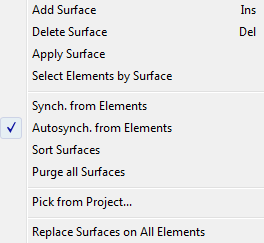
| Add Surface INS-Key |
A new surface is appended at the end of the list. |
| Delete Surface DEL-Key |
Deletes selected surface from the list. |
| Apply Surface | Transfer surface properties of a selected surface onto
currently selected element(s) in the
element list. Remark: Visible when exactly one surface is selected. |
| Select Elements by Surface | Selects all elements in the
element list having one specific surface assigned. Remark: Visible when exactly one surface is selected. Remark: For 3D-Layered models the selection operation applies only to currently active layer. |
| Synch. from Elements | Executes immediate synchronisation of surface list from properties of all elements currently in the modelled component |
| Autosynch. from Elements | The synchronisation of surface list from properties of all elements in the modelled component will be executed automatically (checkmark is visible) and can be turned on or off here. |
| Sort Surfaces | Surfaces will be sorted by name and alpha. |
| Purge all Surfaces | Removes all surfaces from the list |
| Pick from Project... | Surfaces saved within another project will be read and
appended to the list. Remark: After importing the data from another project the (optional) bulk replacement of surface properties on all elements with those just imported will be offered. |
| Replace Surfaces on All Elements | The surface properties of all elements will be replaced by name with those from the
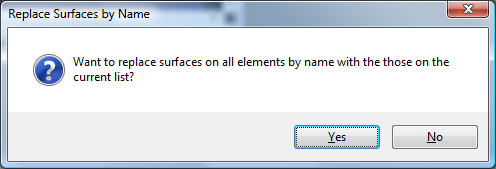
current surface list (bulk replacement). Remark: Shall duplicate name appear in the list only the first instance in the order will be applied. Remark: For 3D-Layered models the operation applies only to currently active layer. |
Synchronisation of surface list
The list of surfaces offered in this window can be synchronized (extended) with surfaces currently in use in the modelled component, thus all surfaces used in the model are also displayed. This provides the ability to transfer properties directly entered in element editor to the list and have them at hand as additional entries.
Synchronisation can be explicitly requested from the context menu of the material list ("Synch. from Elements") or will automatically be executed on each element selection change when the application setting "Autosynch. from Elements" is active.
Synchronisation executes by following steps:
- All elements of modelled component are analysed.
- Surface properties of each space element are extracted.
- If no such surface (name, α, Rs) can be found in surface list it is appended to it.
- Surfaces appended during this synchronisation run and appended at the end of the list are sorted alphabetically.
This procedure assures, that entries are retained in the list and only "missing" surfaces will extend it.
Remark: Automatic synchronisation of list contents, if active, occurs on each element selection change. Changes to element properties (in Element Editor) alone do not result in automatic synchronisation yet. Immediate synchronisation can be explicitly requested from the context menu of the surface list ("Synch. from Elements").
Tip: To have the list showing only surfaces actually used in the modelled component delete all surfaces from the list (this can be quickly done with DEL-key) and then request immediate synchronisation from component's elements. Unused surfaces are not removed automatically from the list!
Standardised surface heat transfer coefficients
The tab "Std.Surfaces" provides a list of (read
only) normative surface properties (standard values of Rsi and Rse).
You can find these
reference values within the description of U-Value calculator.
Important: While assessing heat loss different values must be used within the component model as those for the mould and condensation assessment! That means you will have to adjust respective Rsi and Rse values depending on the assessment type.
See also: Element Editor, Elements 2D, Element list, Surface Editor window